
How to Back Up Important Emails (Simple & Safe Method)
This guide shows simple ways to save important emails outside of your email account, so they remain protected during upgrades, changes, or future transitions.
The short version
Back up important emails as both a PDF and an email file (EML or MSG). You do not need to back up every email, only the ones that matter most.
Visit the Amplified Client Hub by
Clicking Here.
Understanding the two backup formats
- PDF: Easy to open, view, and share. Best for records, reference, or documentation.
- EML or MSG file: Preserves the original email, including attachments and metadata. Best for long-term storage or re-importing later.
For important emails, I recommend saving both formats.
1. Microsoft Outlook (Classic Desktop)
To back up an email in the classic desktop version of Microsoft Outlook, you can either print it to a PDF or save it as a file.
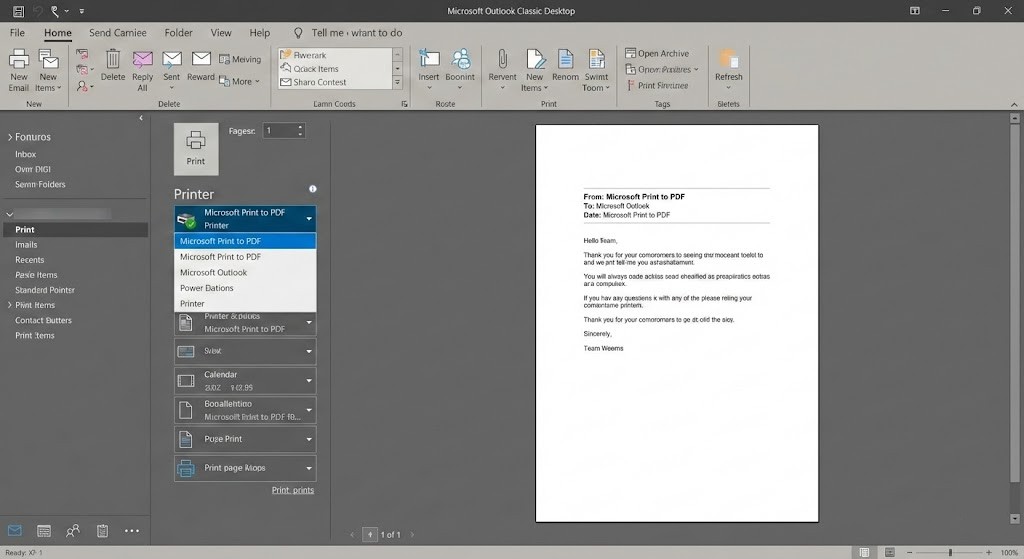
Method 1: Print to PDF
- Open the email you want to back up.
- Go to File > Print.
- From the printer dropdown menu, select Microsoft Print to PDF.
- Click Print and choose a location to save the PDF file.
Method 2: Save as File
This method saves the email in a format (like .msg) that can be opened by Outlook later.
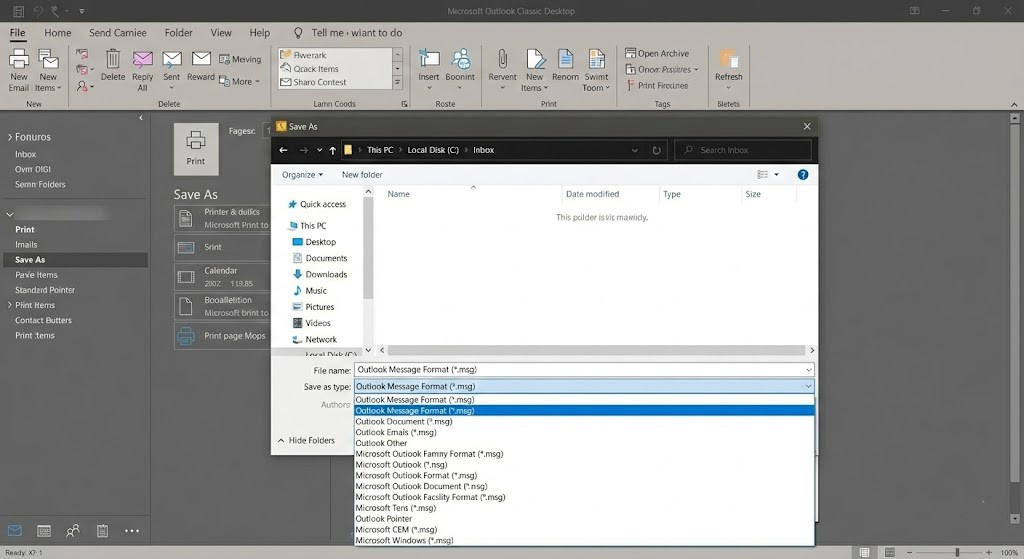
- Open the email. Go to File > Save As.
- In the “Save As” dialog box, choose a location to save the file.
- From the “Save as type” dropdown, select Outlook Message Format (*.msg).
- Click Save.
2. Microsoft Outlook (Web Version)
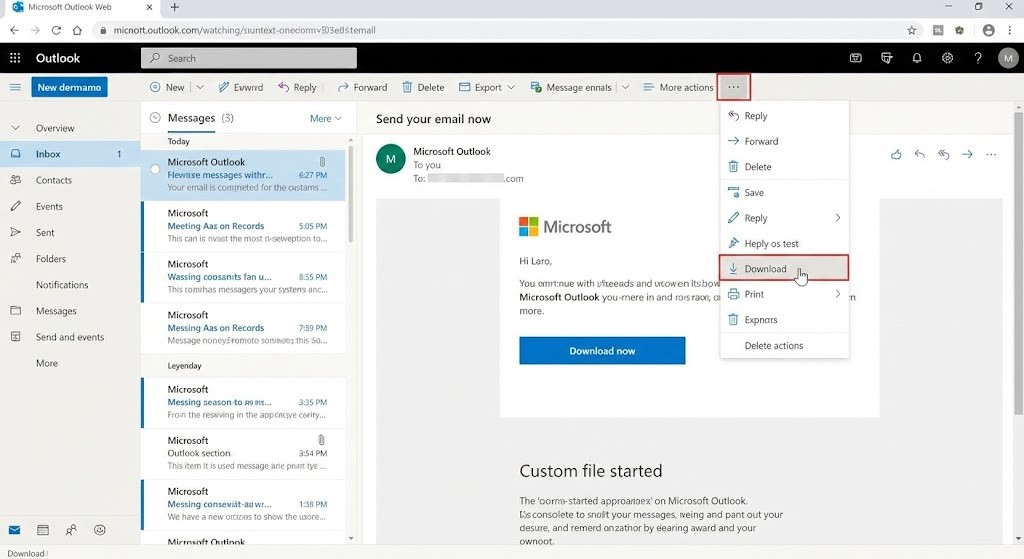
For the web version of Outlook, you can download an email as a file. Open the email you wish to save.
- Click the More actions button (the three dots …) at the top of the email window.
- Select Download from the dropdown menu. The email will be saved to your computer, typically in the .eml format.
3. Gmail (Web)
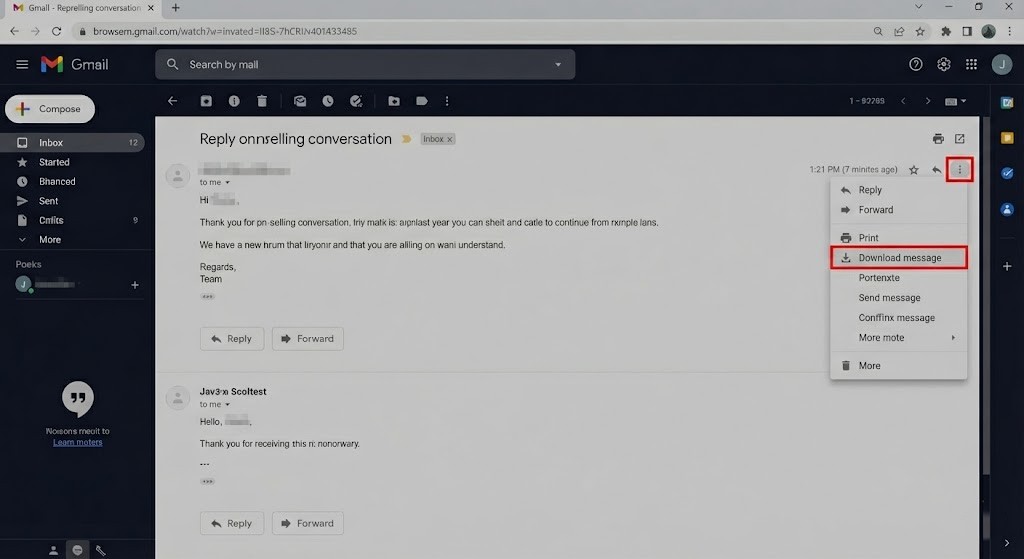
Gmail provides options to both print an email to a PDF and download the message file. Open the email you want to back up.
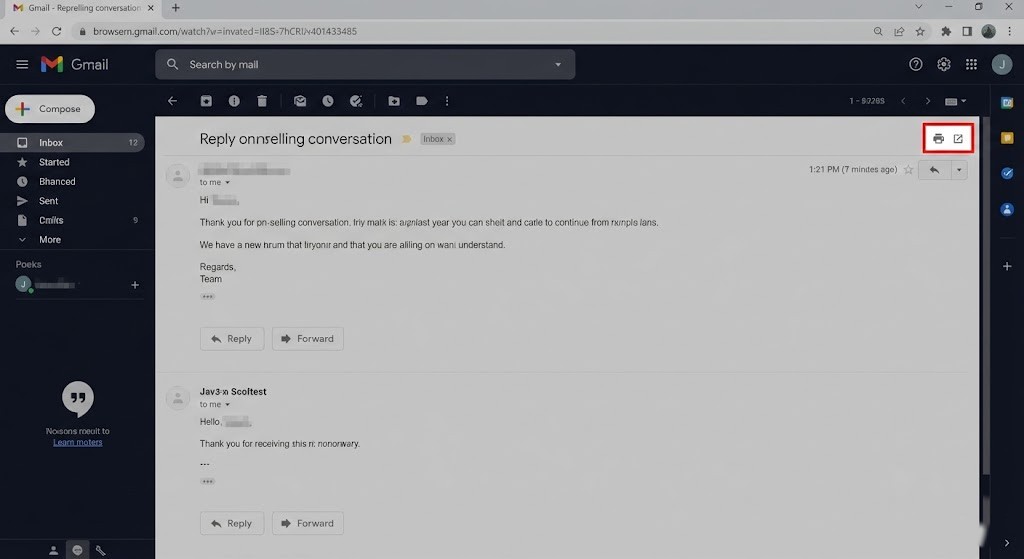
Method 1: Print to PDF
- Click the Print all icon (a small printer) in the top-right corner of the email. This is not the browser’s print button.
- In the print dialog window that appears, change the destination to Save as PDF.
- Click Save and choose a location for your file.
Method 2: Download Message
- Open the email.
- Click the More button (three vertical dots) in the top-right corner of the email message pane.
- Select Download message from the dropdown menu. The email will be saved to your computer in the .eml format.
4. Apple Mail (Mac)
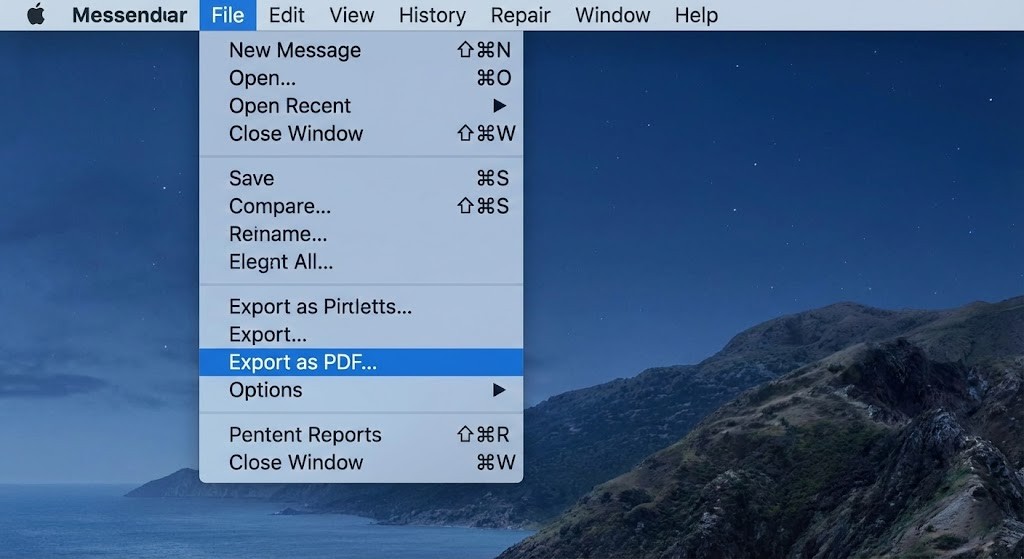
In Apple Mail, you can easily export an email as a PDF.
- Open the email you want to back up.
- In the menu bar at the top of the screen, click on File.
- Select Export as PDF… from the dropdown menu.
- Choose a name and location for your PDF and click Save.
5. Mozilla Thunderbird
Thunderbird also provides options to print to PDF and save emails as files.
Method 1: Print to PDF
- Open the email you want to back up.
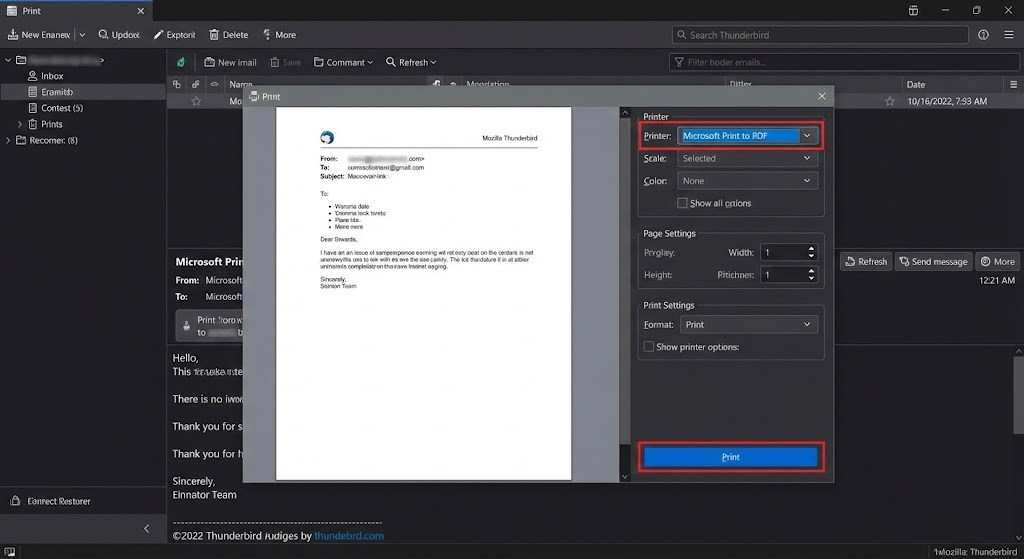
- Go to File > Print.
- In the print dialog box, select Microsoft Print to PDF (or a similar “Save to PDF” option) from the printer dropdown.
- Click Print and choose a location to save your PDF.
Method 2: Save as File
- Open the email.
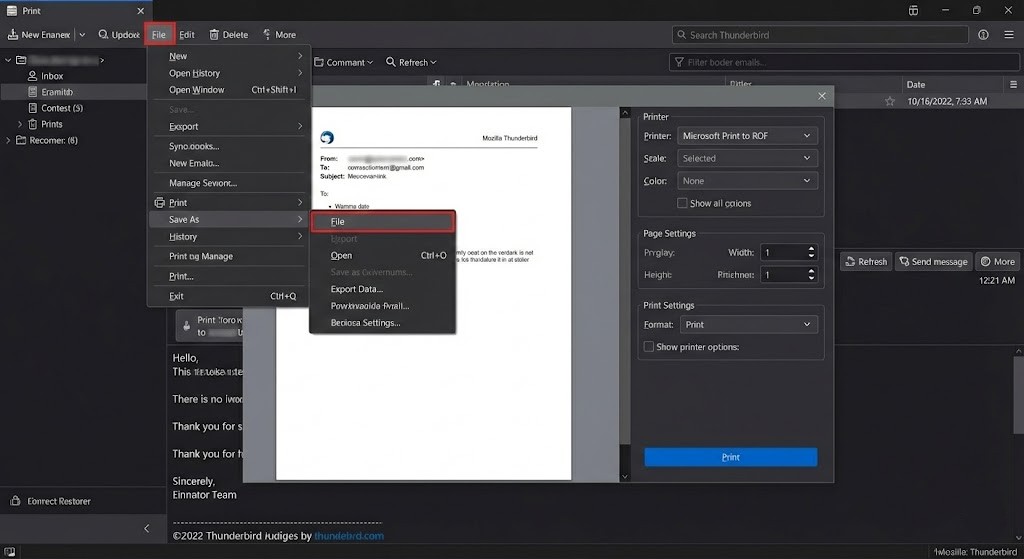
- Go to File > Save As > File.
- Choose a name and location for your file and click Save. The email will typically be saved as a .eml file.
Where to store your backups
After saving your emails, store the files in at least one safe location outside your email account, such as:
- A dedicated folder on your computer
- Cloud storage like Google Drive or OneDrive
- An external hard drive for added protection
Keeping at least one copy outside your email client helps ensure important messages remain accessible even if your email account changes in the future.
If you have any questions or would like help setting this up, please reach out through the Client Hub.